Test 9: Recover your wallet
Now let's wipe the wallet from this device and recover it with your recovery phrase and backup file.
If you started a force move in Test 8, wait until it's done before you continue.
This is real bitcoin, so make sure you have your recovery phrase written down and your backup file saved before you delete anything. Without them, you could lose access to your bitcoin.
9.1: Copy your recovery phrase
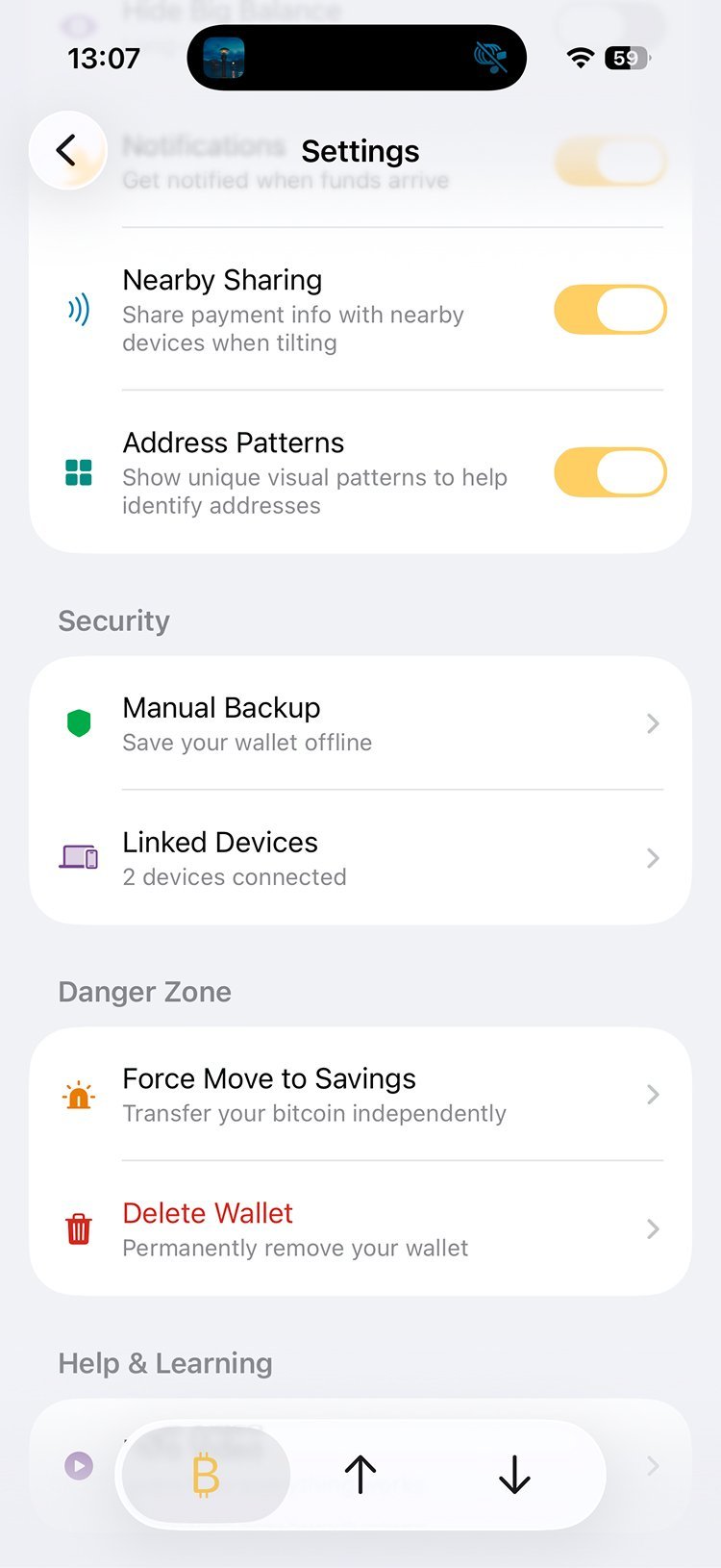
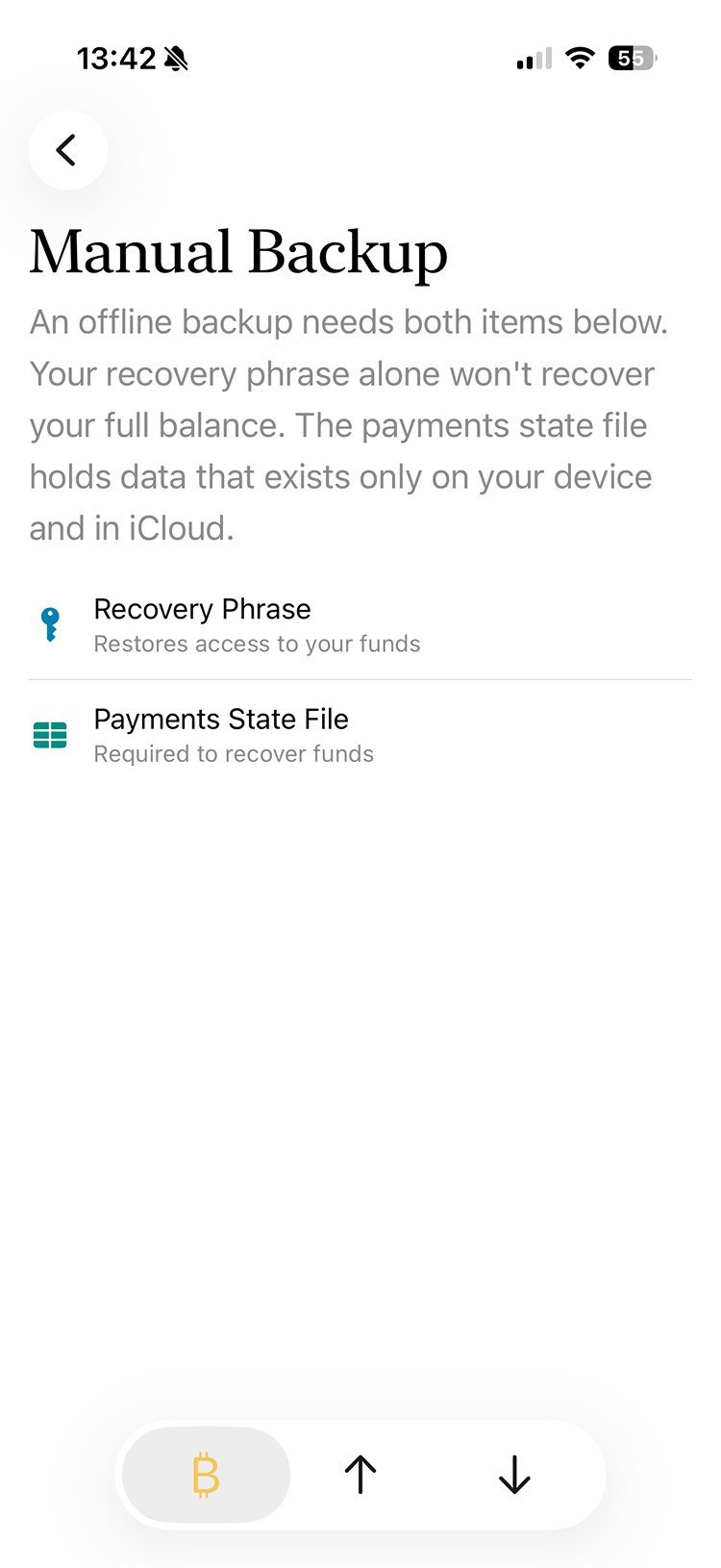
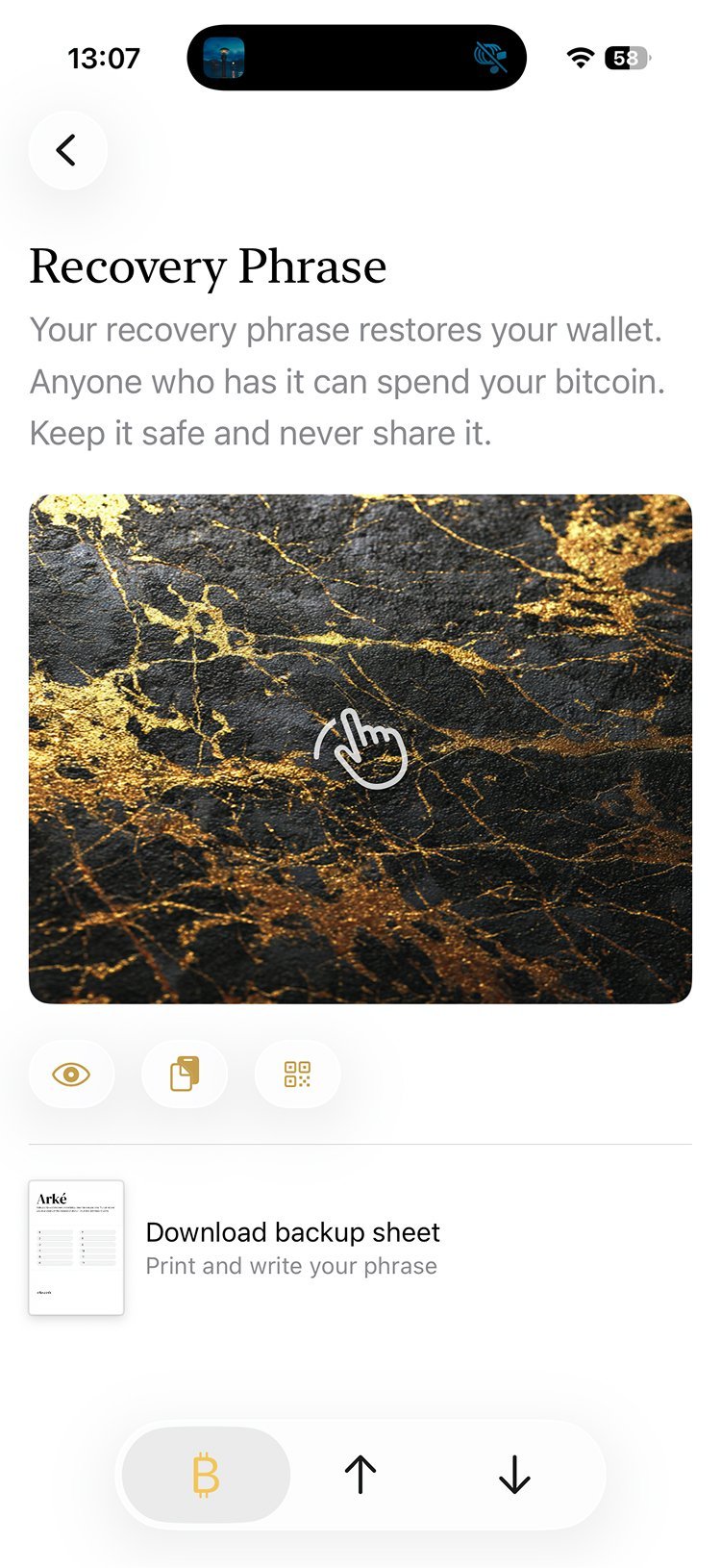
Navigate to Settings from the Activity screen, then to Manual Backup, and then to Recovery phrase. Scratch off the texture to see your recovery phrase and then write it down somewhere.
9.2: Download your backup file
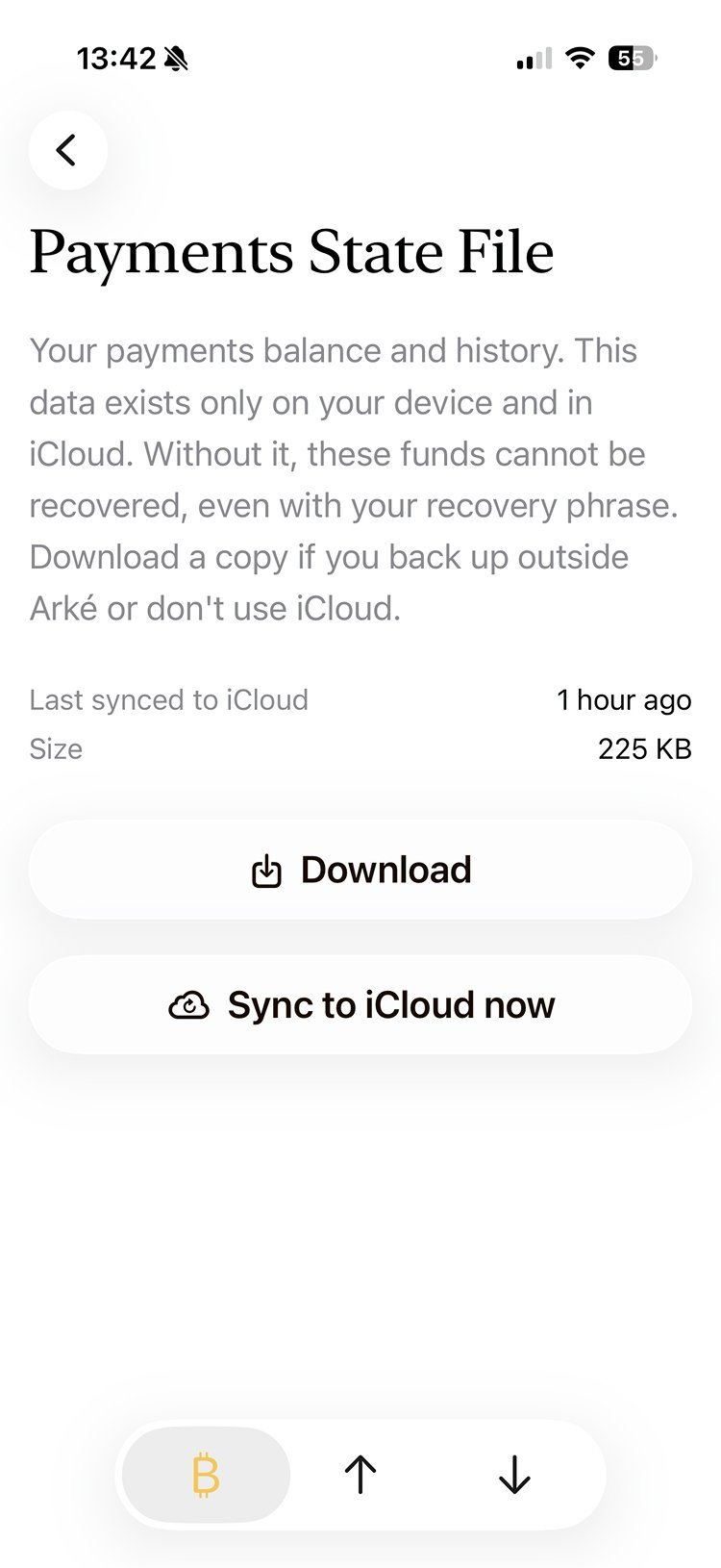
From Manual Backup, go to Backup File. Sync to iCloud, and then download the file. It doesn't include contacts, notes, or tags. You can export those to a separate file from Contacts & Metadata on the Manual Backup screen.
9.3: Delete your wallet
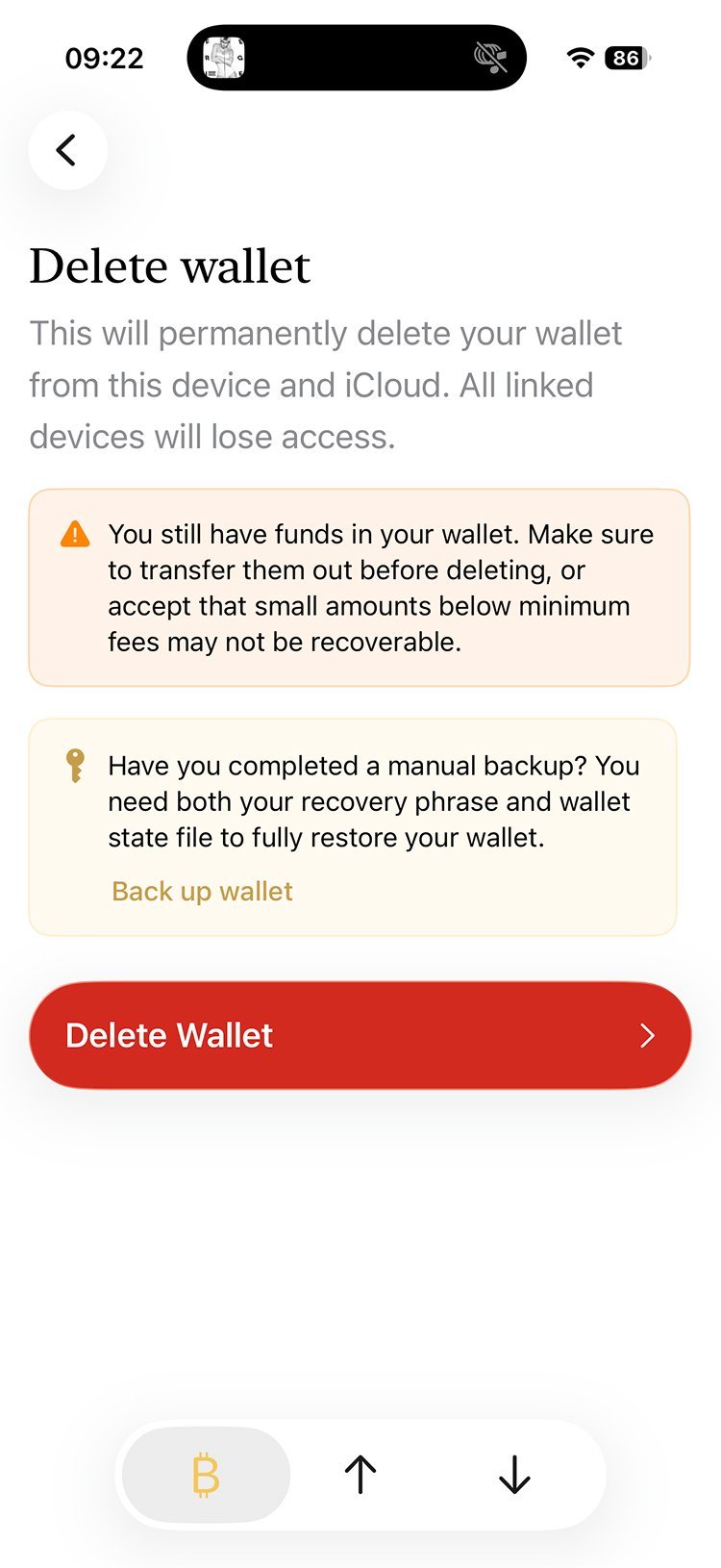
Still in Settings, navigate to Delete wallet. This will wipe all wallet data from the device and iCloud.
The screen warns you about your payments balance. That's fine here, since you're importing the same wallet right away. It also asks for two words from your recovery phrase before it deletes anything.
9.4: Start the import
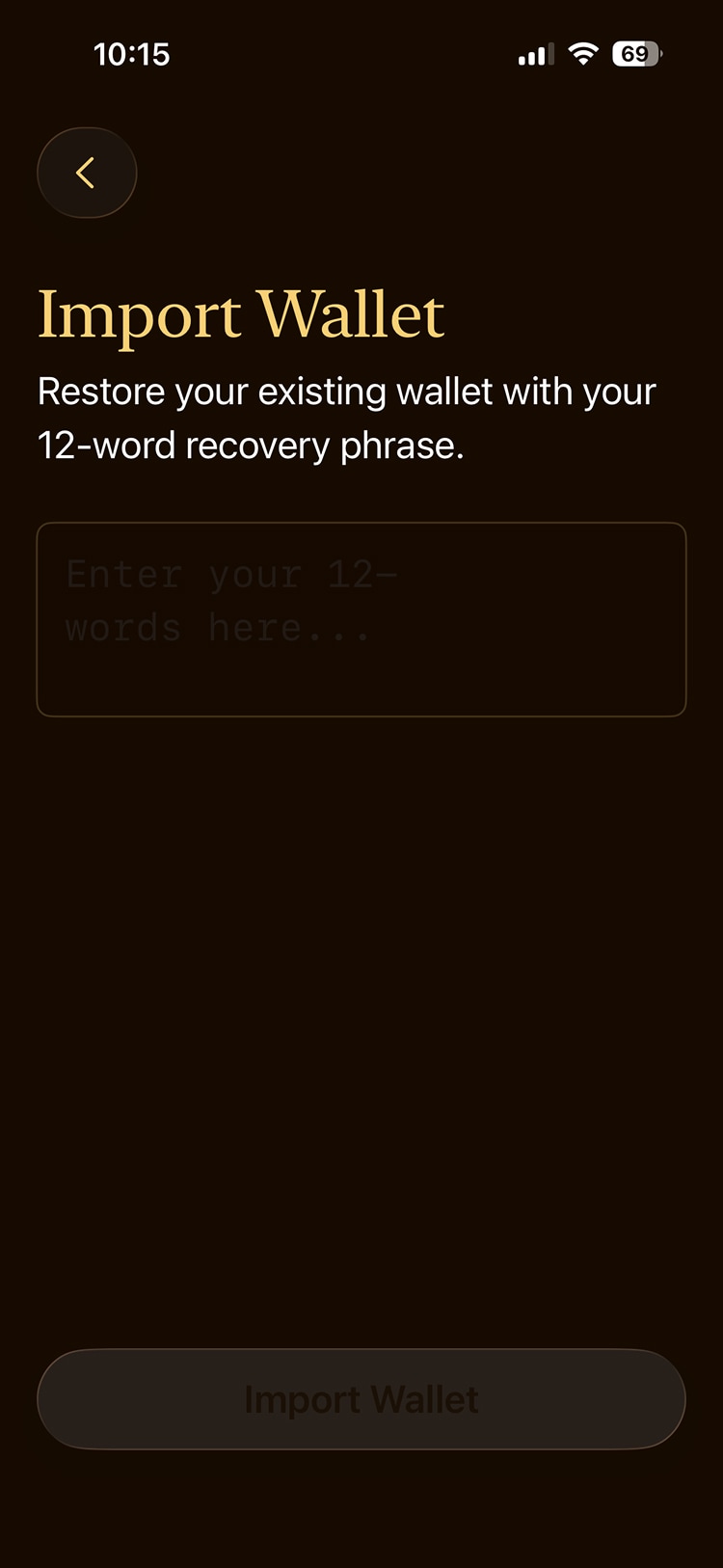
After deletion, you will find yourself back on the cover screen. Tap the Import wallet option.
9.5: Complete the import
Enter your recovery phrase, upload your backup file, and continue. You should now find yourself back in your wallet, with your full balance. Transactions will be synced with the Ark server.
If any of this didn't work, tell us. Recovery is the one thing that has to work.
If you are more on the technical side, you can also import your recovery phrase and backup file into other Bark wallets.
That's it for all the tests we have. Feel free to poke around the app, bend things, break things, and let us know what you think.